
Adding a component to a page through Page Builder
When you create or edit a page, you can add a component and populate its datasource in Page Builder.
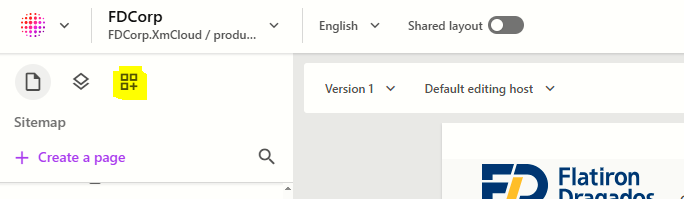
In page builder, select the components icon from the left panel.
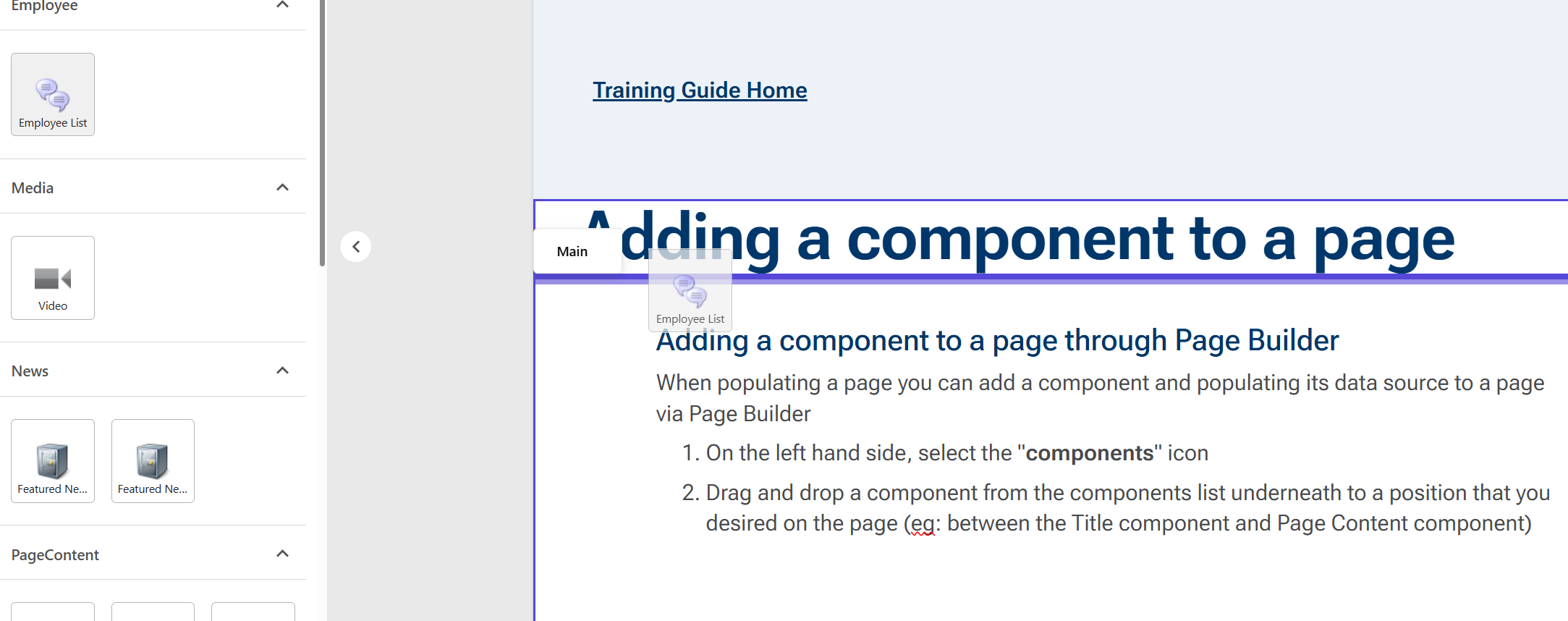
From the Components Toolbox, drag and drop a component on to the page.
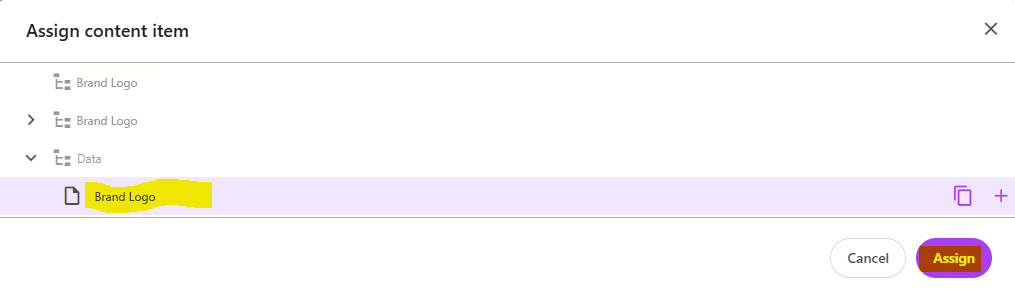
- In the Assign content item window, either select an existing datasource or create a new one
- to select an existing datasource, click on the datasource and then click Assign
- to create a new datasource:
- click the "+" icon to the right of a data source folder.
Note: there are 3 datasource folders- Top <datasource name> folder: this is a global folder. Any datasources created here can be re-used by any website under the FDCorp Sitecore instance
- Middle <datasource name> folder: this is the site folder. Any datasources created here can be re-used within the same website only
Data folder: this is the page-level folder. Any datasources created here can only be used within the page
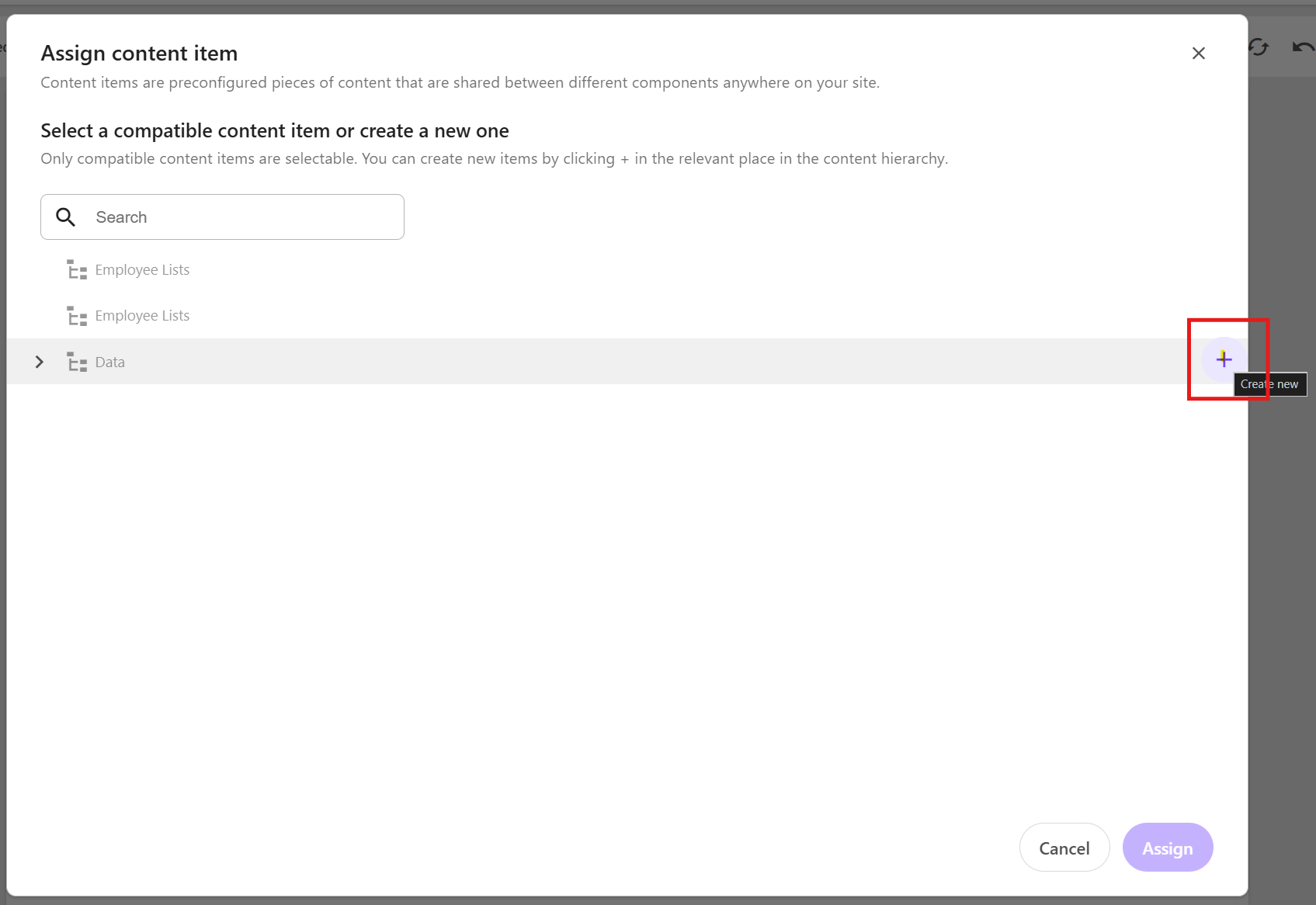
- click the "+" icon to the right of a data source folder.
Select the component template and click Assign.
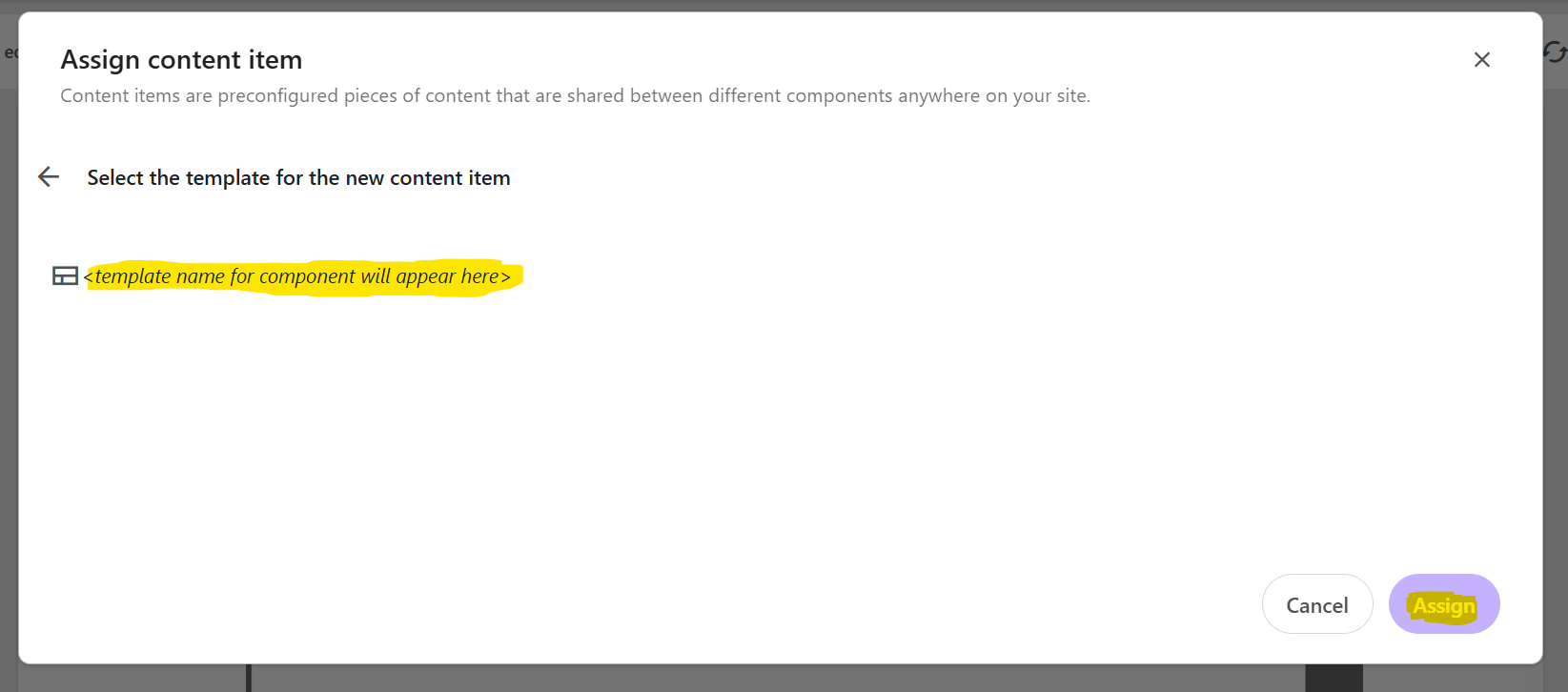
Enter a name for the datasource for the new content item WITHOUT clicking on the datasource itself. Press ENTER once you have finished typing the datasource name and then click Assign.
- The new data source will appear on the page. Refer to the corresponding component page in this training guide for detailed instructions on how to edit and configure it.