
Publishing Content
There are 2 ways to publish content in Sitecore:
Through Page Builder
- click on the purple Publish button on the top right of the screen
- if required, tick subpages and All languages
- click Start Publish
Through Content Editor
- Switch to Content Editor
- Click on the red XM Cloud icon on the top left
- select Content Editor from the dropdown list
- From the content tree on the left, navigate to the page / item you want to publish. i.e.:
Sitecore > Content > Flatiron Dragados > FDCorp .....etc
For example, if you want to publish a News article, navigate to:
Sitecore > Content > Flatiron Dragados > FDCorp > home > news > news category > year > article-name
- From the Sitecore ribbon, select the Publish tab, and then click on the drop-down arrow to the right of the Publish button. Then select Publish item

From the Publish Item dialogue window, select the following options and then click Publish:
Please note: Do not select subitems if you are publishing the home page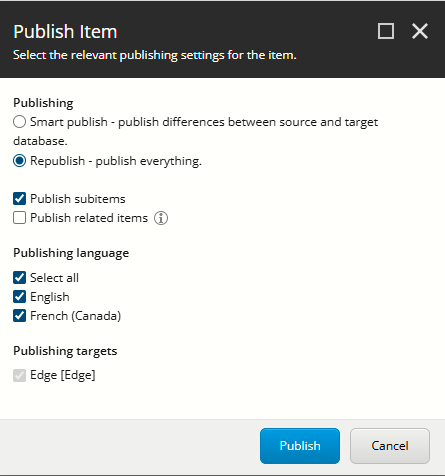
Publishing Media
If you find your media items aren't getting published when you publish content, then follow these additional publishing steps:
In Content Editor, navigate to the media library item (or folder) you want to publish
e.g.: Sitecore > Content > Flatiron Dragados > FDCorp > media > fdcorp > folder name > item name
If you need to publish multiple images in the same folder, you can just publish the folder.
Please note: Do not publish the entire media library
- From the Sitecore ribbon, select the Publish tab, and then click on the drop-down arrow to the right of the Publish button. Then select Publish item
- From the Publish Item dialogue window, select the following options and then click Publish: