



Add Component to a Page
In Page Builder, navigate to the page you want to add the component to.
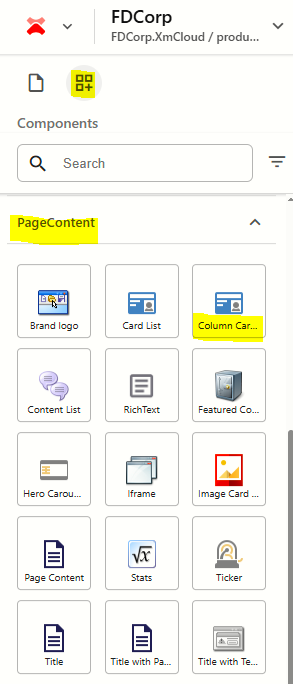
From the Components panel, drag and drop the Page Content > Column Card component into a container on the page.
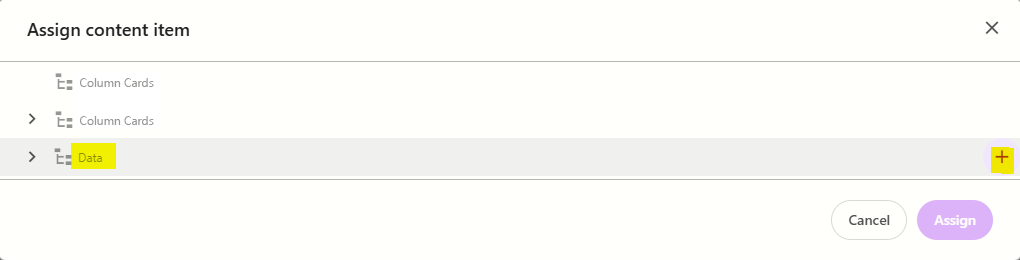
In the Assign content item window, hover over the data folder in the tree and then click on the + icon
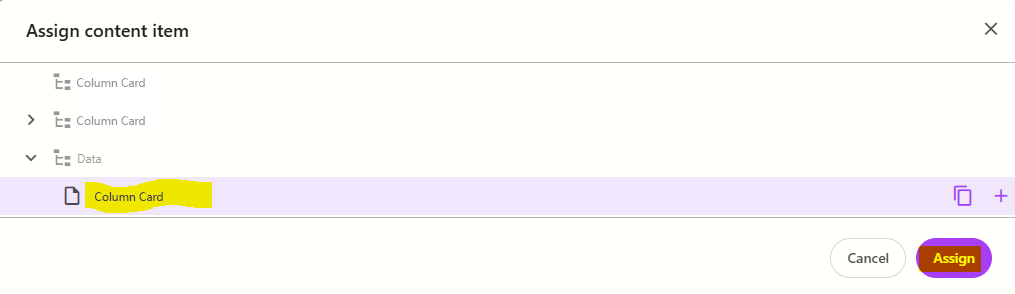
Select the Column Card template to create a datasource, and then type the name for the new content item WITHOUT clicking on the datasource itself. Press ENTER once you have finished typing the datasource name and then click Assign.
The new datasource will appear on the page. Enter a title for the component.
To add a card to it:
click on the component to select it and display the component configuration menu on the right
from the Design tab, expand Manage items and click + Add new > ColumnCardItem
Enter a name for the card and press ENTER. The page will refresh and you will see the card appear with content placeholders in it.
To add content to a card:
click on the image placeholder and then select Add from the right hand panel. Find and select the image you want to use from the media library. If the image doesn't exist, you will need to upload it first.
If you hover over each [No text in field] under the image, a tooltip will appear to indicate the field name. Click on [No text in field] for each field and fill in the relevant content.
Repeat steps 6-7 for additional cards you want to add to the component.
Configure the Component
- Click on the card list component to select it and display the card list configuration options on the right
The table below outlines the configuration and advanced styling options available for the component. Apply these as appropriate.
Configuration Options | Description |
|---|---|
Design Tab | |
Is Contained | Tick checkbox to display the component with extra padding on the left and right; Or leave unticked to display component full screen width. |
Theme | Select a theme to change the colours of the text |
Top Spacing | Adds extra spacing above the component |
Bottom Spacing | Adds extra spacing below the component |
| Content Tab | |
| Title | Component title. Can be managed from this field or directly on the component. |
Delete Cards
To delete a content item:
- Click on the Column Card component on the page to select it
- From the Column Card panel on the right, expand Manage items
- Hover over the card you want to delete and click on the 3 dots
- Select Delete
Publish the page (Publish item with all subitems)
Reorder Cards
To reorder content items:
- Click on the Column Card component on the page to select it
- From the Column Card panel on the right, expand Manage items
- Click and drag the cards into the order you want them to appear
- Publish the page (Publish item with all subitems)