


LinkedIn

Facebook

Instagram

Flatiron
  • Our Companies
  • Our Projects
  • Careers
  • News & Insights

Training Guide Home > Component Library

Content  Carousel

The Content Carousel component is used to display a carousel of content items with a side navigation. It can be displayed as a full width component or a contained component.  

|  Working Component  |  Add Component to a Page  |  Configure Component  |  Delete Items  |  Reorder Items  |


Working Component

Content Carousel (Optional)

Interns
  • Interns
  • Early Career
  • Experienced Professionals
  • Engineers
  • Skilled Craft
  • Innovation
Overline Text

Innovation

Gain hands-on experience and shape your future on impactful projects. As you learn from industry-leading experts, you will build a strong foundation and develop essential skills that set you apart in the industry.
Read more
build your future

Interns

Gain hands-on experience and shape your future on impactful projects. As you learn from industry-leading experts, you will build a strong foundation and develop essential skills that set you apart in the industry.

Read more
Build your future

Early Career

Gain hands-on experience and shape your future on impactful projects. As you learn from industry-leading experts, you will build a strong foundation and develop essential skills that set you apart in the industry.

Read more
thumbnail
Overline Text

Experienced Professionals

Gain hands-on experience and shape your future on impactful projects. As you learn from industry-leading experts, you will build a strong foundation and develop essential skills that set you apart in the industry.

Read more
Overline Text

Engineers

Gain hands-on experience and shape your future on impactful projects. As you learn from industry-leading experts, you will build a strong foundation and develop essential skills that set you apart in the industry.

Read more
thumbnail
Overline Text

Skilled Craft

Gain hands-on experience and shape your future on impactful projects. As you learn from industry-leading experts, you will build a strong foundation and develop essential skills that set you apart in the industry.
Read more
Overline Text

Innovation

Gain hands-on experience and shape your future on impactful projects. As you learn from industry-leading experts, you will build a strong foundation and develop essential skills that set you apart in the industry.
Read more
build your future

Interns

Gain hands-on experience and shape your future on impactful projects. As you learn from industry-leading experts, you will build a strong foundation and develop essential skills that set you apart in the industry.

Read more
Build your future

Early Career

Gain hands-on experience and shape your future on impactful projects. As you learn from industry-leading experts, you will build a strong foundation and develop essential skills that set you apart in the industry.

Read more
thumbnail
Overline Text

Experienced Professionals

Gain hands-on experience and shape your future on impactful projects. As you learn from industry-leading experts, you will build a strong foundation and develop essential skills that set you apart in the industry.

Read more
Overline Text

Engineers

Gain hands-on experience and shape your future on impactful projects. As you learn from industry-leading experts, you will build a strong foundation and develop essential skills that set you apart in the industry.

Read more
thumbnail
Overline Text

Skilled Craft

Gain hands-on experience and shape your future on impactful projects. As you learn from industry-leading experts, you will build a strong foundation and develop essential skills that set you apart in the industry.
Read more
Overline Text

Innovation

Gain hands-on experience and shape your future on impactful projects. As you learn from industry-leading experts, you will build a strong foundation and develop essential skills that set you apart in the industry.
Read more

Add Component to a Page


  1. In Page Builder, navigate to the page you want to add the component to.

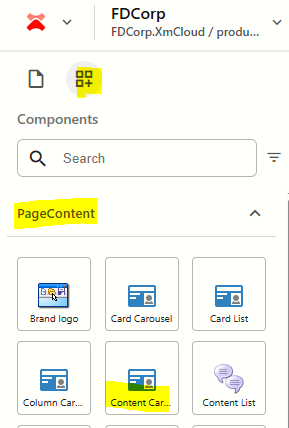
  2. From the Components panel, drag and drop the Page Content > Content Carousel component into a container on the page.
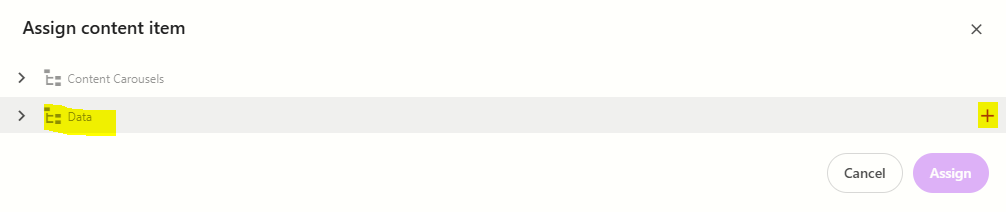
  3. In the Assign content item window, hover over the data folder in the tree and then click on the + icon
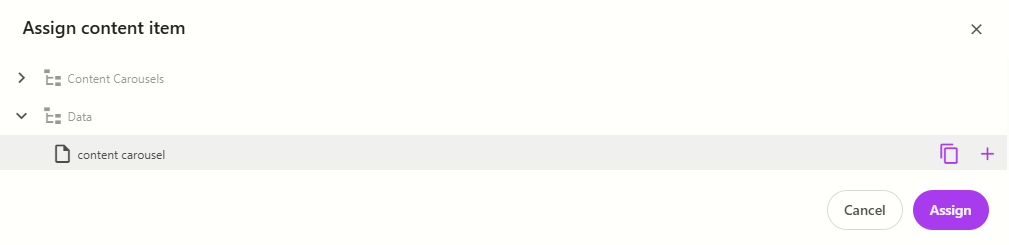
  4. Select the Content Carousel template to create a datasource, and then type the name for the new content item WITHOUT clicking on the datasource itself. Press ENTER once you have finished typing the datasource name and then click Assign.
  5. The new datasource will appear on the page.  Enter a Title for the component.

  6. To add a carousel item to it:

    1. click on the component to select it and display the component configuration menu on the right

    2. from the Design tab, expand Manage items and click + Add new > ContentCarouselItem 

    3. Enter a name for the card and press ENTER. The page will refresh and you will see the item appear with content placeholders in it.  

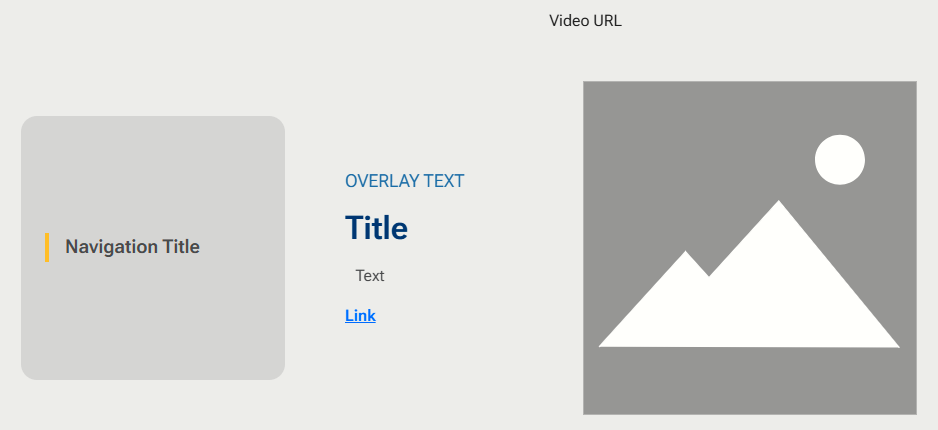
  7. Fill in the following fields for the content item:
component-fields

Field Name

Description

Navigation Title

This is the side navigation label. By default, it will take on the Sitecore item name you gave the item when you created it.  To change it, click on the label in the side navigation and update it. 

Overlay Text

The text that appears above the title

Title

Title for the item 

Text

Description text for the item

Link

The link label and URL.  When you click on this field, additional element options will appear on the right.

  1. Select the icon that matches the link type you want to create 
    1. Internal: link to a page within the website
    2. External: link to an external website
    3. Media: link to a document
    4. Email: link to an email
  2. Enter the link text
  3. Enter the path/URL
  4. Tick the checkbox to open the link in a new window

Video URL 

OR 

Image

You can only select one option:  

  1. Video: enter the full Vimeo URL - OR - 
  2. Image: click on the image placeholder and then select Add from the right hand panel. Find and select the image you want to use from the media library. If the image doesn't exist, you will need to upload it first. 

8. Repeat steps 6-7 for additional items you want to add to the component.


Configure the Component


  1. Click on the content carousel component to select it and display the Content Carousel configuration options on the right
  2. The table below outlines the configuration and advanced styling options available for the component.   Apply these as appropriate.

Configuration Options

Description

Design Tab

Is Contained

Tick checkbox to display the component with extra padding on the left and right;

Or leave unticked to display component full screen width.

Theme

Select a theme to change the colours of the text

Top Spacing

Adds extra spacing above the component

Bottom Spacing

Adds extra spacing below the component

Content Tab
TitleComponent title


Delete Items


To delete a content item:

  1. Click on the Content Carousel component on the page to select it
  2. From the Content Carousel panel on the right, expand Manage items
  3. Hover over the item you want to delete and click on the 3 dots
  4. Select Delete
  5. Publish the page (Publish item with all subitems)


Reorder Items


 To reorder content items:

  1. Click on the Content Carousel component on the page to select it
  2. From the Content Carousel panel on the right, expand Manage items
  3. Click and drag the items into the order you want them to appear within the carousel
  4. Publish the page (Publish item with all subitems)
FlatironDragados

FlatironDragados is the trusted partner delivering resilient, innovative infrastructure throughout the United States and Canada.


FlatironDragados
  • Projects
    • News
      About Us
      • About FlatironDragados
        • Our Values
          Join Us
          • Life at FlatironDragados
            • Find Your Job
              Copyright © 2025 FlatironDragados 
              • Ethics & Compliance
              • Privacy Policy
              • Terms & Conditions
              • EOE