
News article page is a special content type that can be only created under the News section.
Create a news article page in page builder
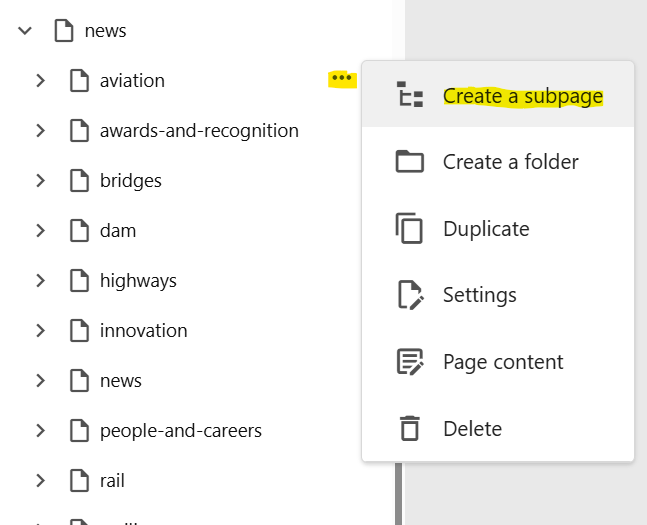
- Click on the "..." icon to the right of a news category page, and select Create a subpage
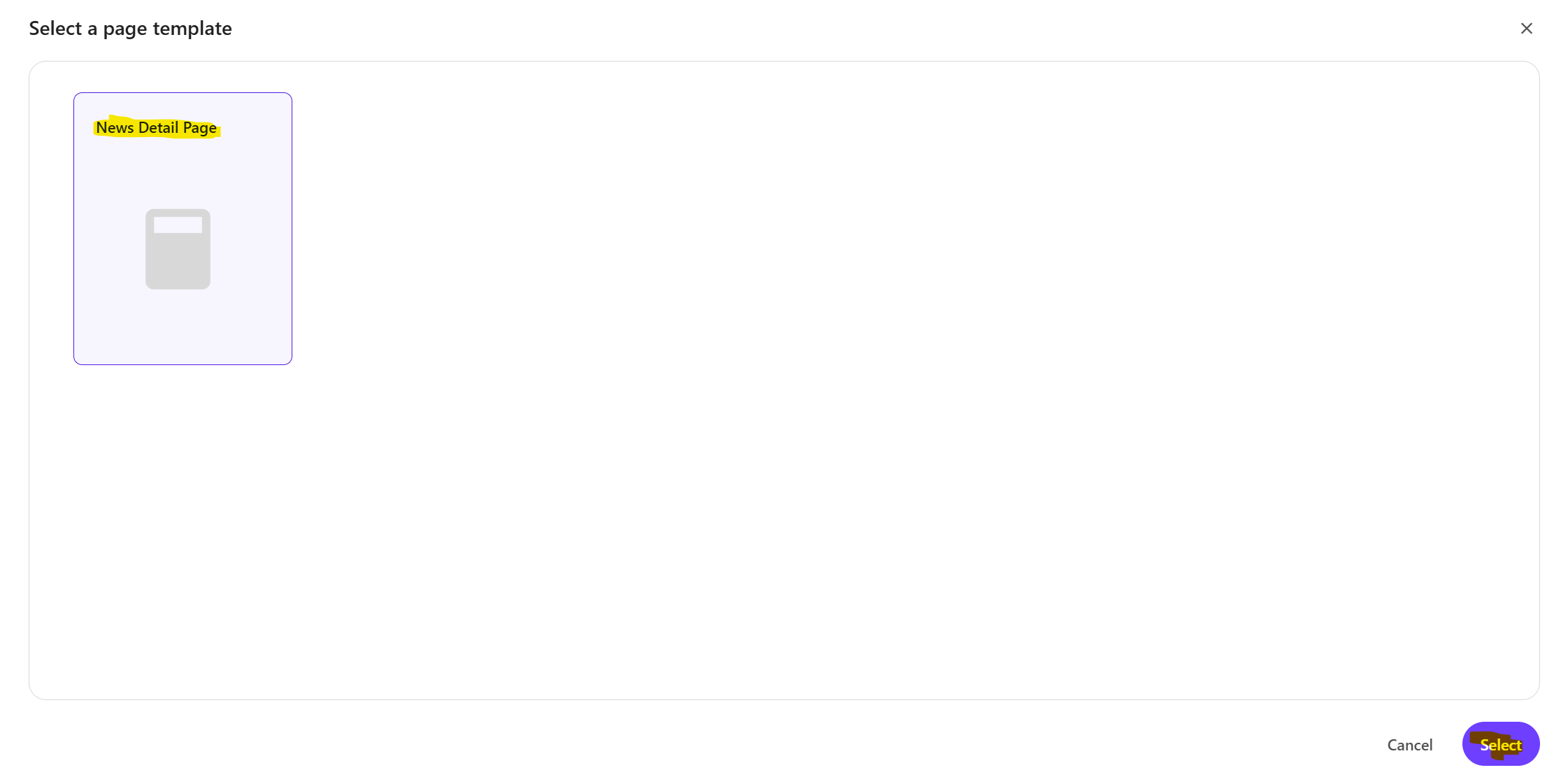
Select the News Detail Page template, and then click Select
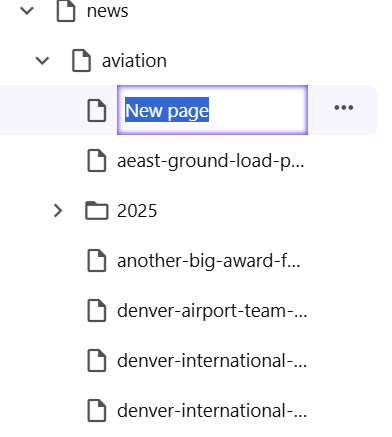
The new page will appear in the content tree with the placeholder name highlighted. Enter a name for the news article page WITHOUT clicking anywhere else. Press ENTER once you have finished typing the name of the page.
Populating content on a news article page
- Each news article page created from the article template will automatically include the following four components:
- Populate the datasources for the above 4 components with content as required
After adding content to the components, update the page content — including metadata, open graph information, publish date, and region.
To update page content, click the “…” icon to the right of the article name, and choose Page Content from the menu. The table below outlines the fields to be completed. Expand each section to view the fields and update them as described.
Section / Field Description Section: Properties Date Published The actual date to publish the article in your local time Date Published for Displaying The date shown on the news article and news listing pages. This date remains the same for all users, regardless of their local time zone. Region Assigns a region to a news article Section: OpenGraph Title Displays the article title on the news listing page Description Displays the article description on news listing page Image: Displays the article image on news listing page Section: Page Meta Properties Page keywords A list of words or short phrases that describe the main topics or themes of the page Meta title Defines the page title used by search engines and is also displayed in browser tabs Page description A short summary of the content on the page Meta NoIndex Ticking the checkbox tells search engines not to include this page in the search results - The next step is to tag the article.
- Switch to Content Editor by clicking on the Open in Content Editor link at the bottom of the page properties panel
- Content Editor will open in a new tab with the article page selected. Scroll down the page template to the Tagging section
Select the tag you would like to add from the left column and click the ">" icon, or double-click on the tag to select it and move it to the Selected column.
To remove a selected tag, select it from the right column and click the "<" icon, or double-click on it.
- Save your changes
- Publish the news article